
Adding an image to a Document Page
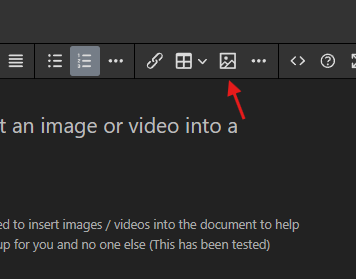
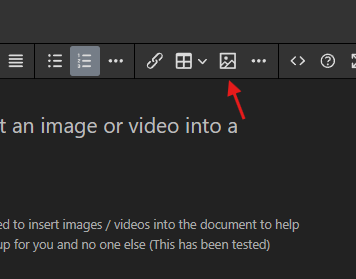
This document will show you out to attach/insert an image or video into a document.
Starting Document for How To: Attachments · BookStack
When writing a new page within the document platform, sometimes you will need to insert images / videos into the document to help support the material. Posting a CTRL+V image will not work as it will only show up for you and no one else (This has been tested)
It is also not a good idea to upload to YouTube because historically we have had individuals leave the community and they end up disabling reference material on their YouTube leaving the unit without information or with dead links.
- Create a new document
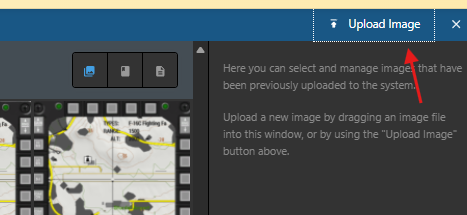
- Upload the Image File.
- Note: You may re-name the image before or after uploading but you MUST rename the file so its relevant and can be found later.
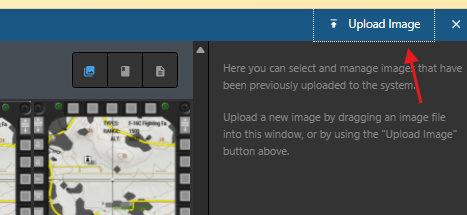
- Note: You may re-name the image before or after uploading but you MUST rename the file so its relevant and can be found later.
- If renaming after upload is needed select the edit and set the new file name
4. After renaming the image, you can save and insert the image into the document.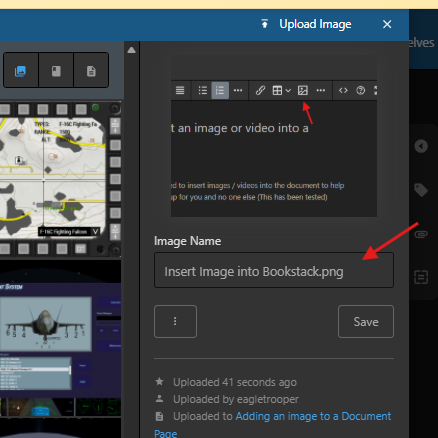
Renaming the image allows anyone to find the image to use other places if necessary. This also avoids having every image called "image.png" so you have no idea what things reference